
GeeLark Setup
23 Jan 2026
Reading time ~ 4 mins
Downloading and Installing GeeLark
1. Open the official GeeLark website in your browser.
2. Click Download (Choose your operating system: Windows, Linux, or macOS).
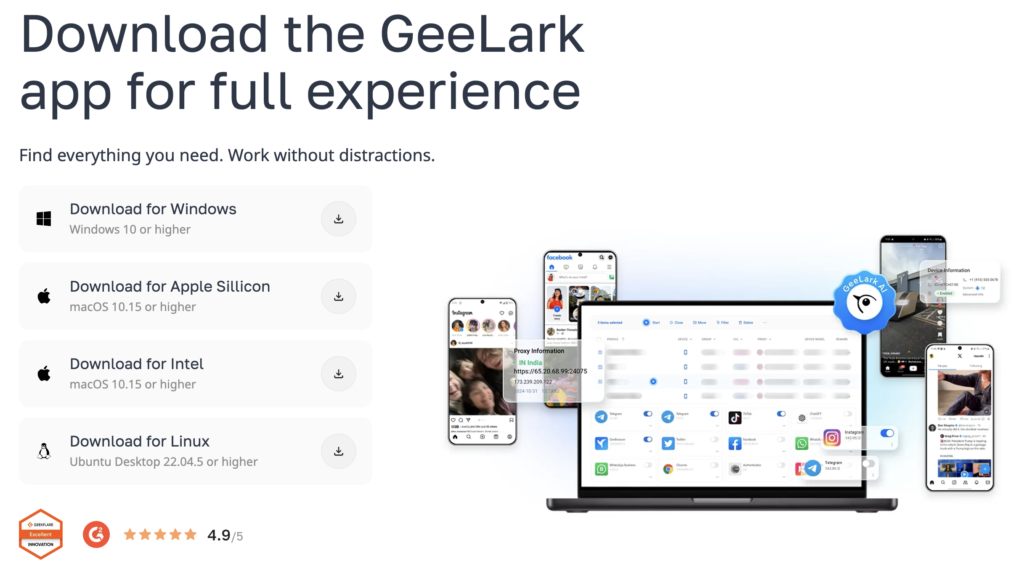
3. Run the installer and follow the on-screen instructions. MacOS may ask for installation permission. After installation, the GeeLark authorization window opens.
Creating a GeeLark Account
- Click Sign In/Register in the login window.
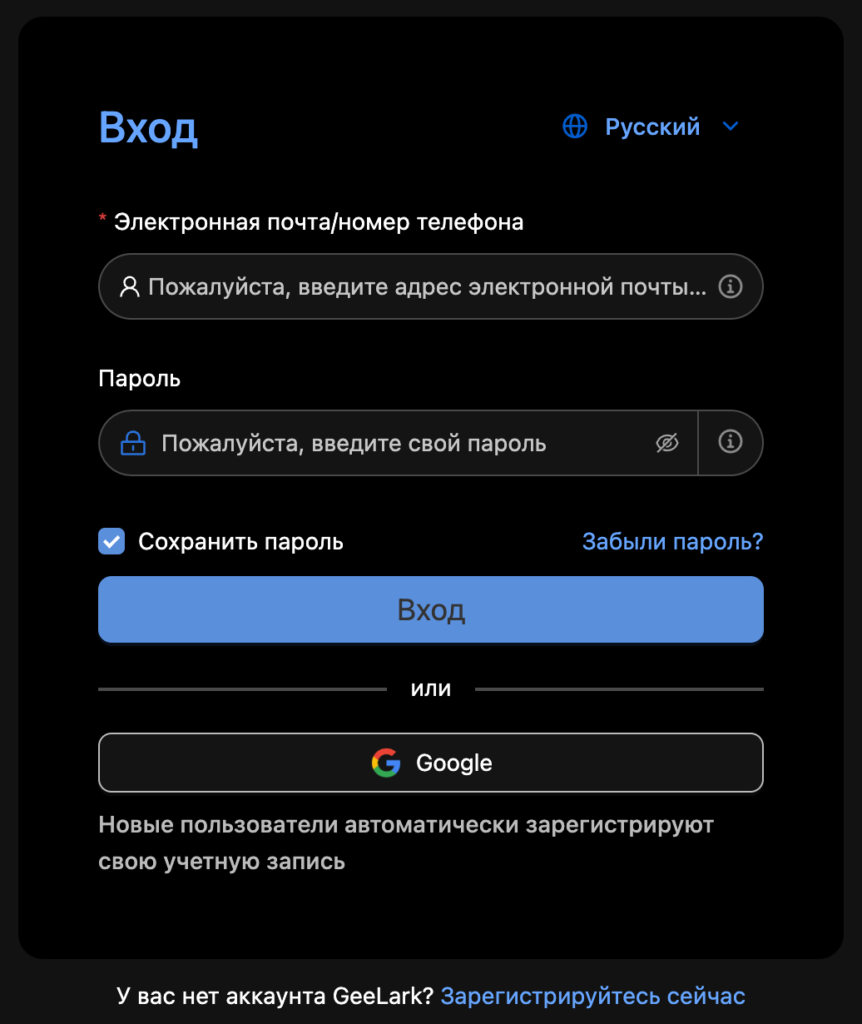
- If you already have an account, enter your email and password.
- If you don’t have an account, register using email or Google account, fill in all fields and verify your email.
- Return to the application and log in with your username and password.
Creating Your First GeeLark Profile
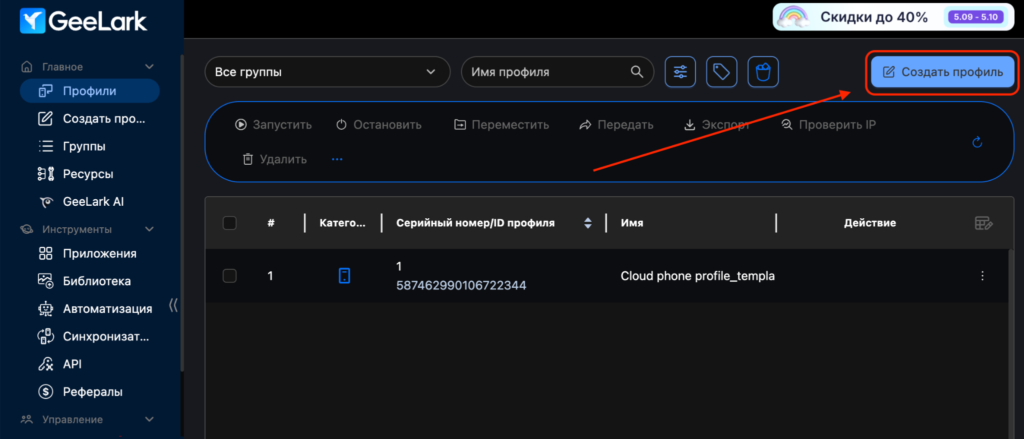
- To create a new profile, select “Profiles” in the left menu and click “create profiles”.
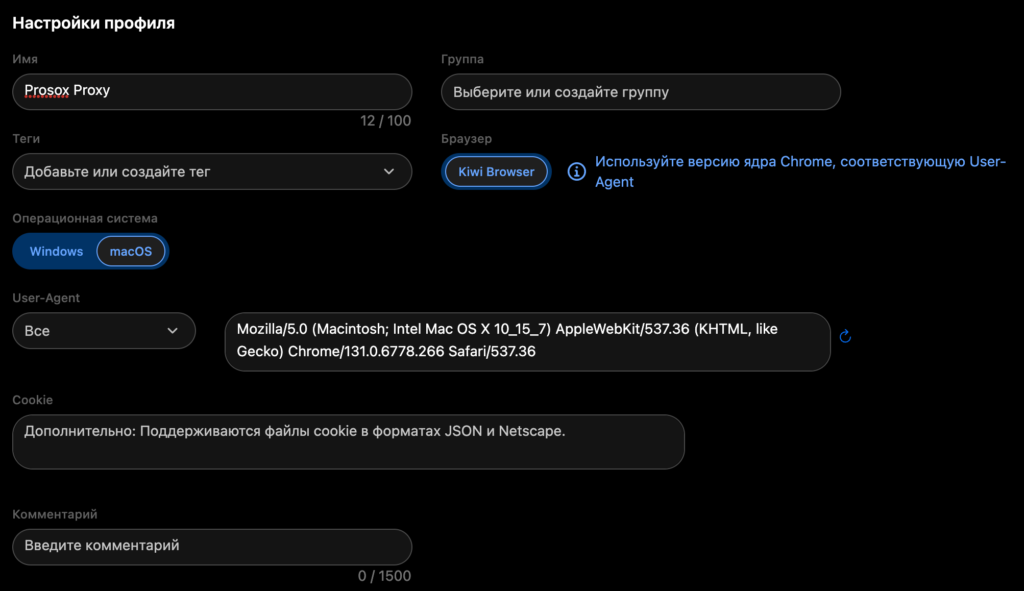
- Enter a profile name (for example, Prosox Proxy).
- Add group, tags, cookies if needed.
Important: one profile = one proxy. This is safer.
Preparing Proxy Data in Prosox
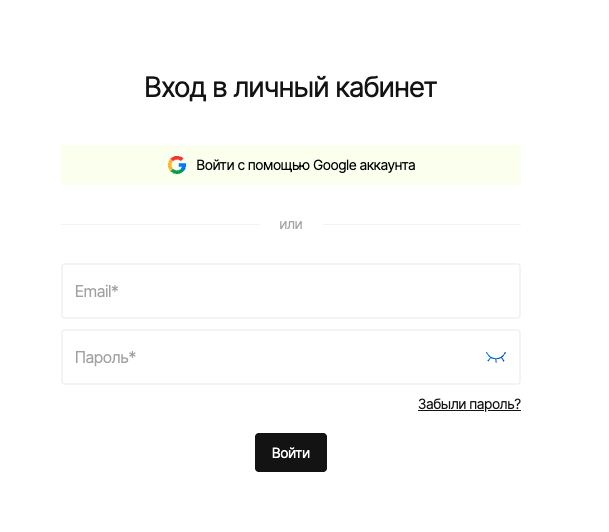
- Log in to your Prosox personal account. If you don’t have an account yet, you can create one by confirming your email.
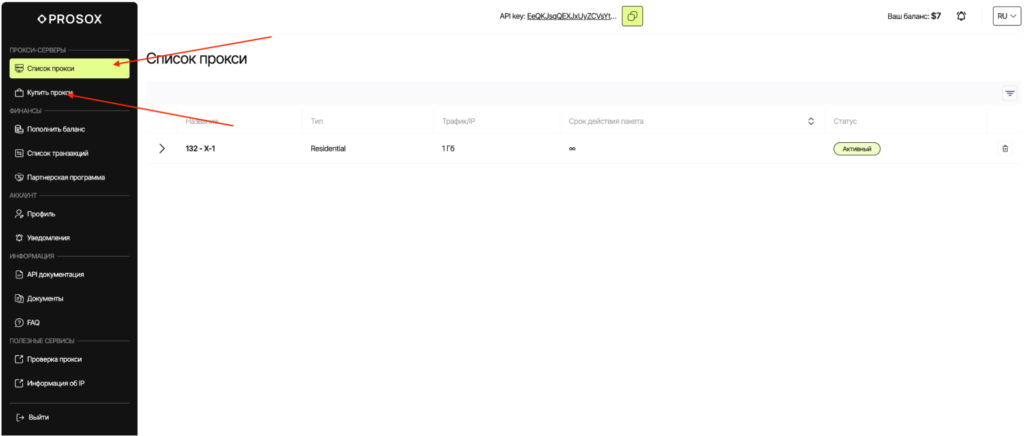
- Go to the “Proxy List” page if you already have proxies, or buy proxies if you haven’t done so yet.
- Choose the proxy type:
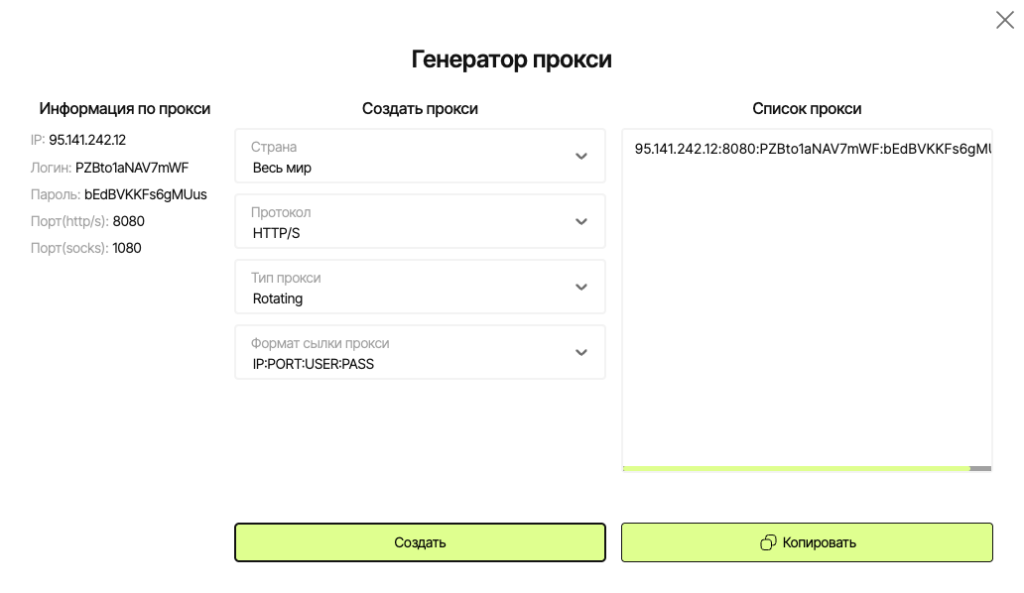
- Residential (rotational) – for “picky” sites, parsing, advertising. IPs can change.
- ISP (static) – the same stable IP for long sessions, accounts, payments.
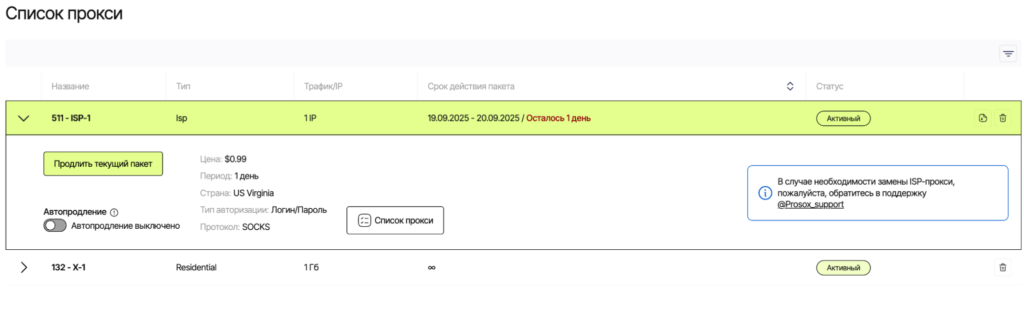
- Copy the connection parameters.
Connecting Prosox RESIDENTIAL Proxies
Example: You purchased residential proxy servers from Prosox.io and received the following:
95.141.242.12:8080:PZBto1aNAV7mWF:bEdBVKKFs6gMUus
- Go to the advanced settings tab to fill in the fields:
- In the proxy type field, select HTTPS or SOCKS5 (whichever is specified in your Prosox).
- Paste the received proxy: 95.141.242.12:8080:PZBto1aNAV7mWF:bEdBVKKFs6gMUus
- In the proxy type field, select HTTPS or SOCKS5 (whichever is specified in your Prosox).
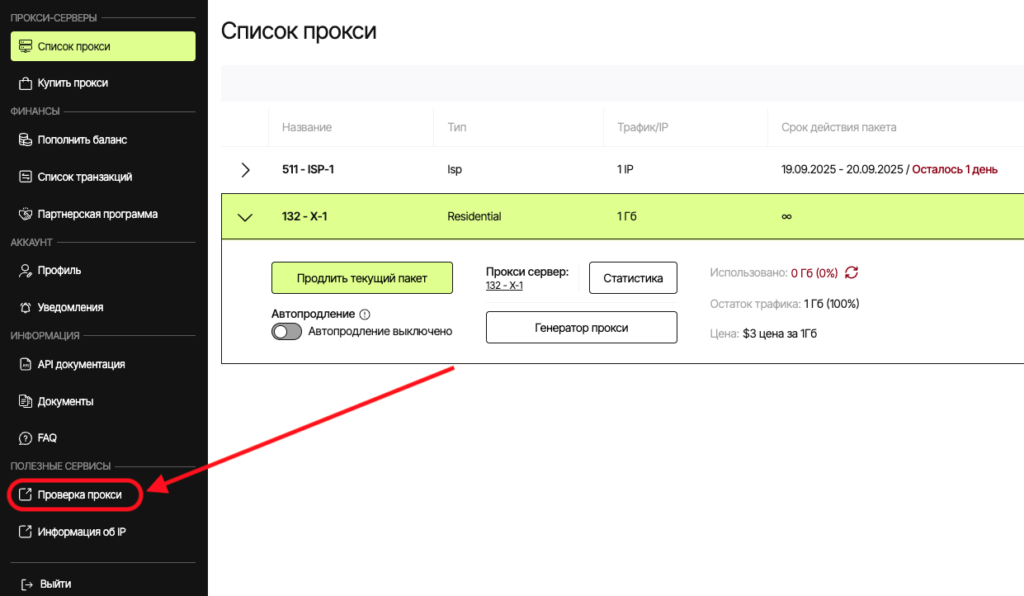
2. Proxy check.
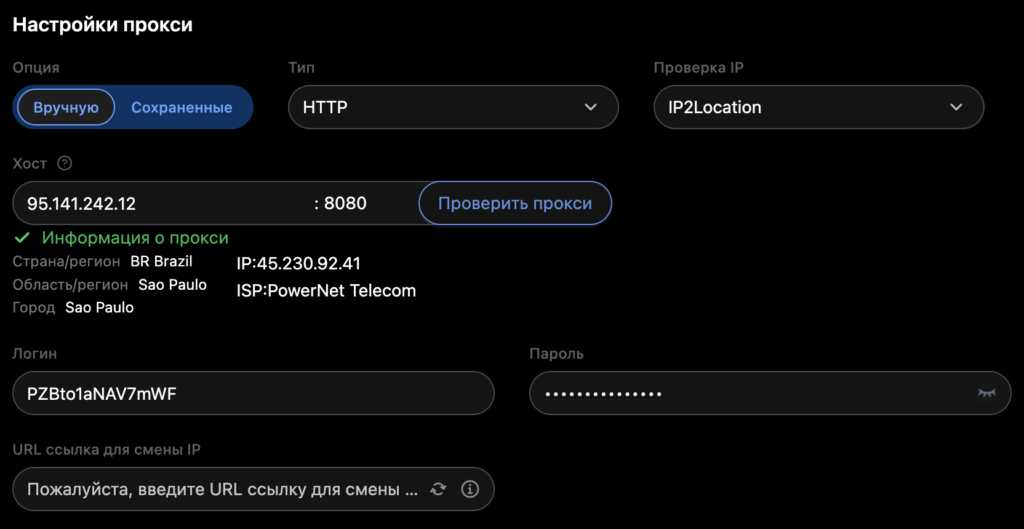
Proxy server verification is already implemented in the Prosox.io personal account. You can check the correct operation from your personal account.
Connecting Prosox ISP (STATIC) Proxies
Example: You purchased US proxy servers from Prosox.io and received the following:
62.171.230.139:63060:prosoxPbfyz:9fSbyM7ce8RW
Go to the advanced settings tab to fill in the fields:
- In the proxy type field, select HTTPS or SOCKS5 (whichever is specified in your Prosox).
- Paste the received proxy
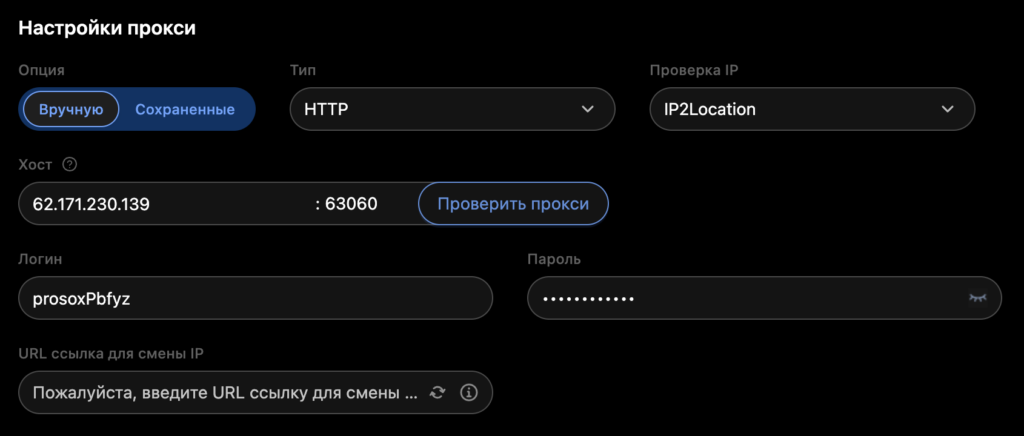
- Check the proxy.
Why ISP proxy: you get the same IP every time you run. This is ideal for long sessions: accounts, billing, payments, careful account management without IP “chatter”.
Setting up “Fingerprints” (to Reduce Blockages)
Go to the advanced settings tab
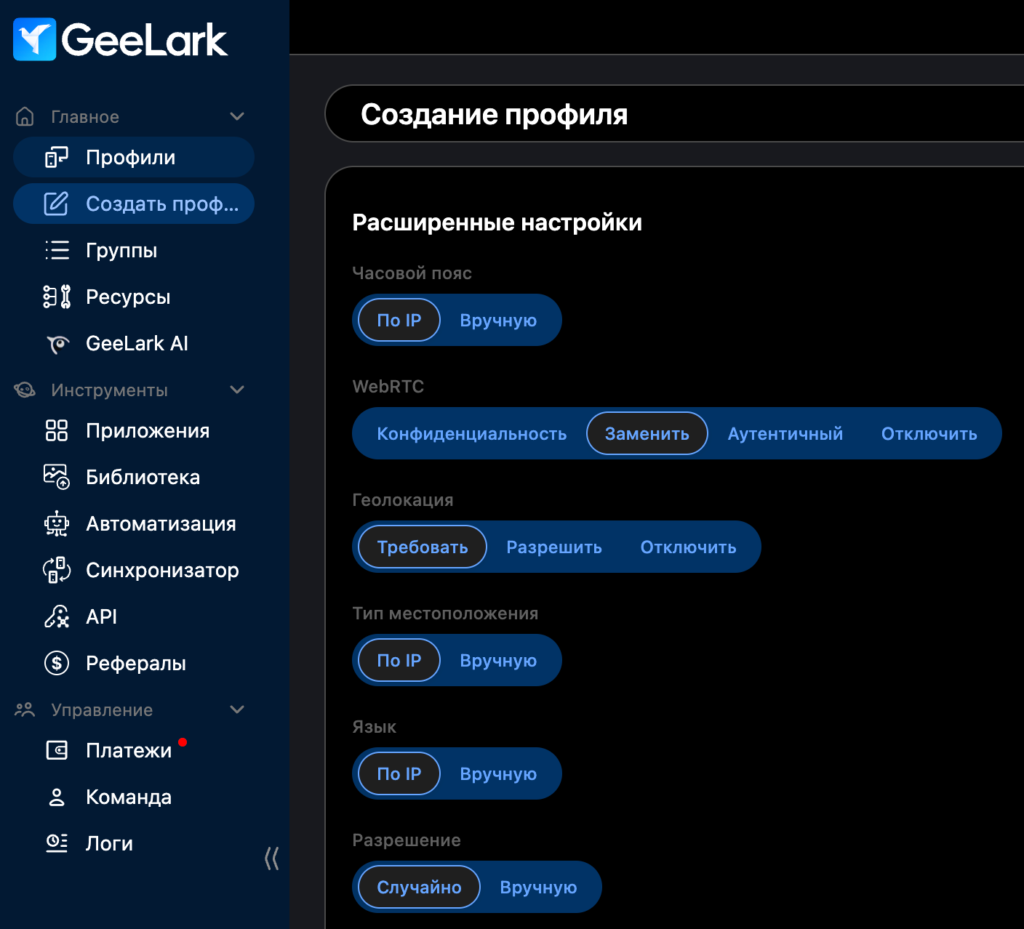
Make the profile as similar as possible to a regular user’s computer:
- Time zone: by IP
- Geolocation: by IP
- Language: by IP
- The rest can be left as default.
As a result, with these settings, your profile will appear as a separate user – with its own unique IP, device, language, and behavior pattern.
Pricing Plans
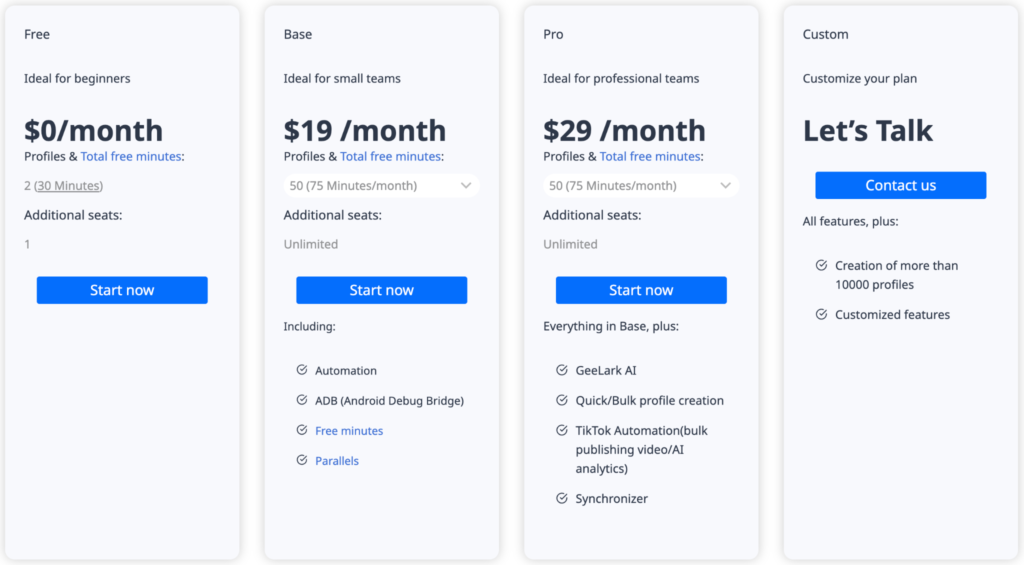
The pricing plan can be selected depending on the needs and number of required profiles:
- Free plan can be tested with 2 profiles
- Paid plans: from $19 per month
Conclusion
GeeLark is a next-generation platform for multi-accounting: stable profiles, flexible automation, and convenient team collaboration mechanics. Anti-detect alone doesn’t solve everything – pairing with quality proxies provides significant impact. Prosox Proxies complete the network security: clean ranges, stable speed, precise geography, and correct masking, which reduces flags and unplanned checks. For long-term and systematic work, the GeeLark + Prosox combination is optimal: permanent IPs, coordinated fingerprints, and carefully structured sessions reduce the risk of blocks and increase the share of working, profitable accounts.
- Retriv.Market – A marketplace for accounts with one-click purchasing.
- The Best Anti-Detection Browser is BitBrowser for Multi-Accounting.
- NoCaptchaAI | The Fastest & Most Affordable AI-Powered Captcha Solver
- Dolphin Anty — an anti-detect browser for multiple accounts
- XLogin setup
- ixBrowser setup
- VMLogin setup
- MULogin setup
- How to set up a proxy in Google Chrome browser
- How to set up a proxy in the Opera GX browser

Would you like to receive a personalized offer?
If you need technical advice or have a specific request, please contact us.