
How to Set Up a Proxy in DuckDuckGo
05 Oct 2025
Reading time ~ 5 mins
Even though DuckDuckGo is initially focused on privacy, a proxy adds another layer of protection: traffic passes through an intermediate server, hiding your real IP, and requests become harder to link to a specific device or geolocation. As a result, websites see the proxy address instead of your original IP, and when using authentication and encryption, session security is enhanced, especially on public networks.
Step-by-step guide to setting up a proxy for DuckDuckGo
The DuckDuckGo browser doesn’t have a single universal “built-in” proxy page for all platforms. Configuration is done at the system level, Wi-Fi network level, or through browser/extensions – depending on the device:
- Windows/macOS/Linux: enable proxy in system network settings – then all traffic will go through it, including DuckDuckGo in any browser.
- iOS/Android: set proxy in current Wi-Fi network settings – proxies traffic for this network, including the DuckDuckGo app and browsers.
Setup
macOS:
- select the proxy you purchased (HTTP/HTTPS/SOCKS).
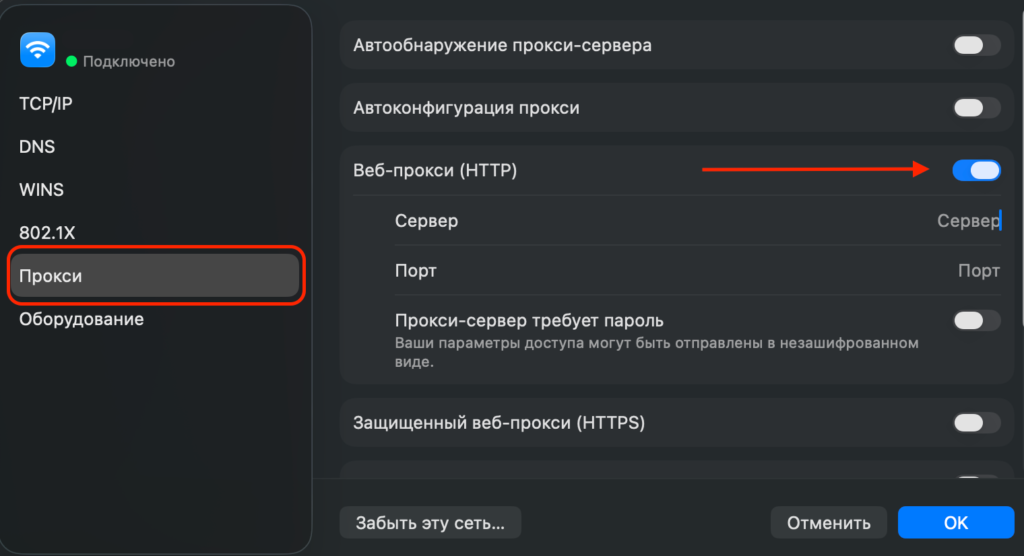
- Enter the IP address and port of the selected proxy server. If authorization is required, activate the option and enter your login and password.
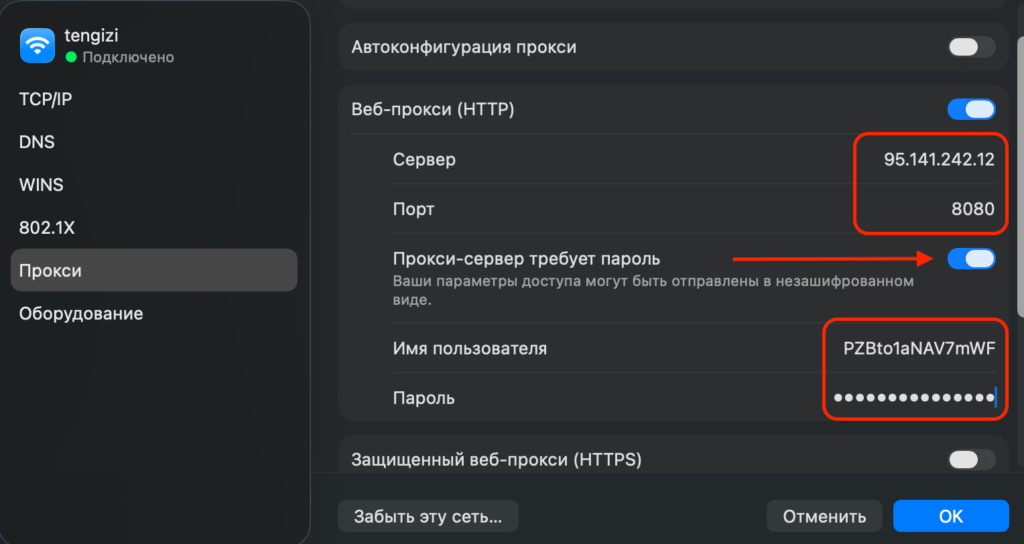
- After entering all connection details, click “OK” to save.
- To change the proxy, return to this window and replace the parameters with new ones.
- To disable the proxy, uncheck “Secure Web Proxy (HTTPS)” to use a direct connection.
iOS (iPhone/iPad):
- Settings → Wi-Fi → your network → Proxy “Manual”, specify server and port, enable authentication if needed, save.
Android:
- Settings → Network Internet → Wi-Fi → your network → Edit/Advanced → Proxy “Manual”, enter host and port, save. For proxies with username/password, authentication is usually requested by the app/browser on first connection.
Getting proxy data from Prosox
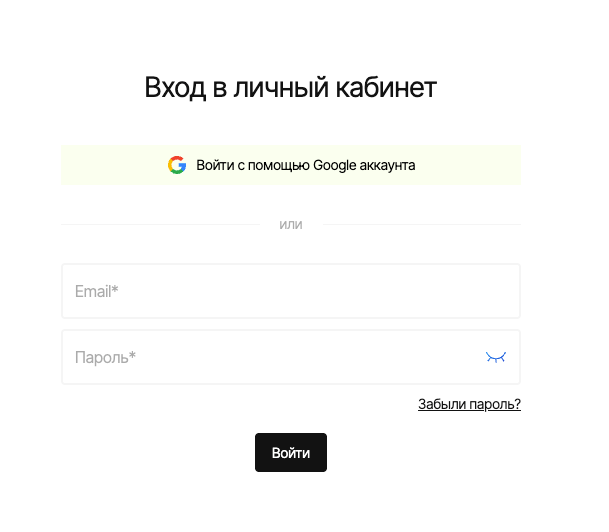
- Log in to your Prosox personal account. If you don’t have an account yet, you can create one by confirming your email.
- Go to the “Proxy List” page if you already have proxies, or buy proxies if you haven’t done so yet.
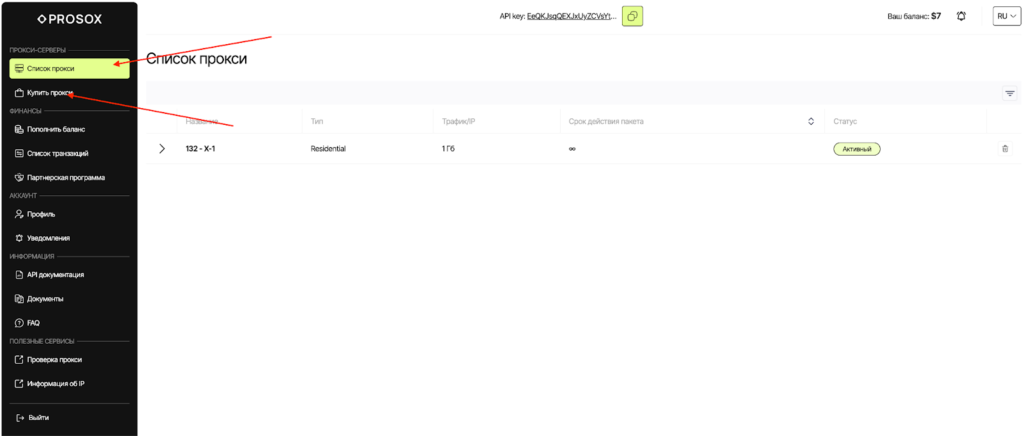
- Select plan/proxy type:
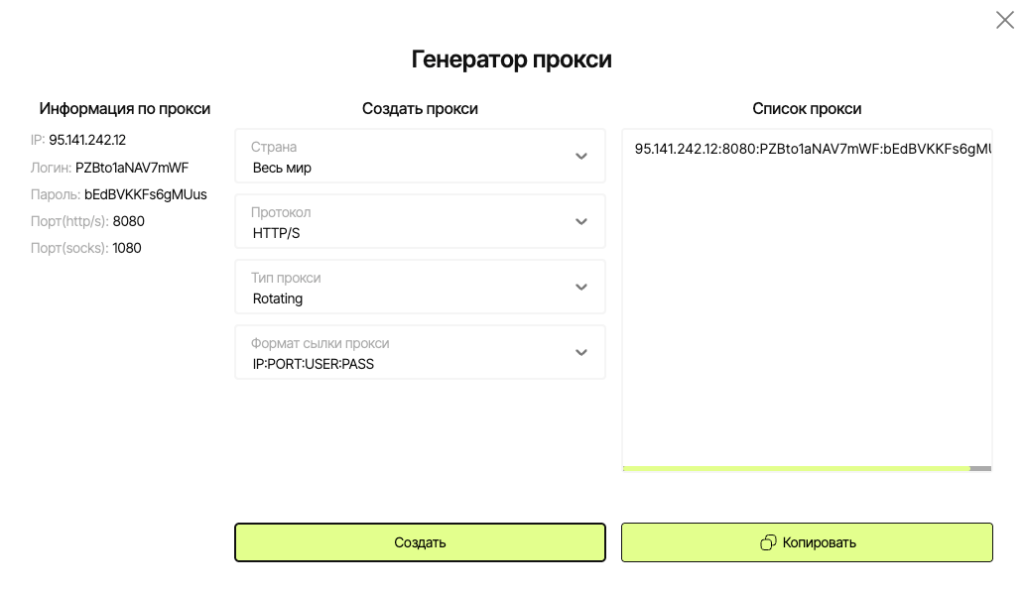
- Residential (rotating) – for “fussy” websites, parsing, advertising. IPs may change.
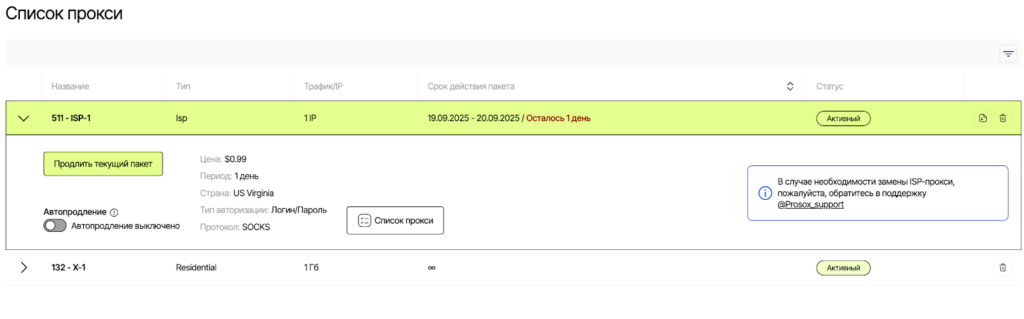
- ISP (static) – the same stable IP for long sessions, accounts, payments.
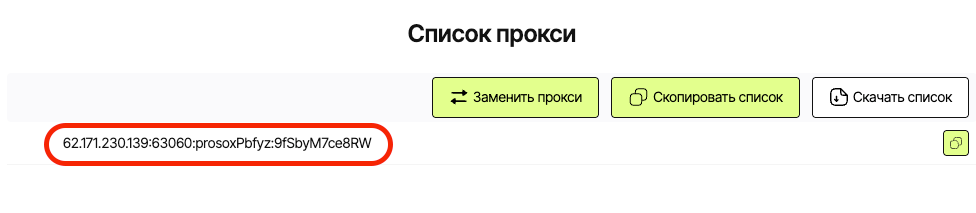
- Copy the connection parameters.
Connecting Prosox RESIDENTIAL Proxies
Example: You purchased residential proxy servers from Prosox.io and received the following:
95.141.242.12:8080:PZBto1aNAV7mWF:bEdBVKKFs6gMUus
- Select proxy type HTTPS or SOCKS5 (as specified in your Prosox account).
- Server: paste your IP from Prosox (example: 95.141.242.12)
- Port: 8080
- Login: PZBto1aNAV7mWF
- Password: bEdBVKVFs6gMUus
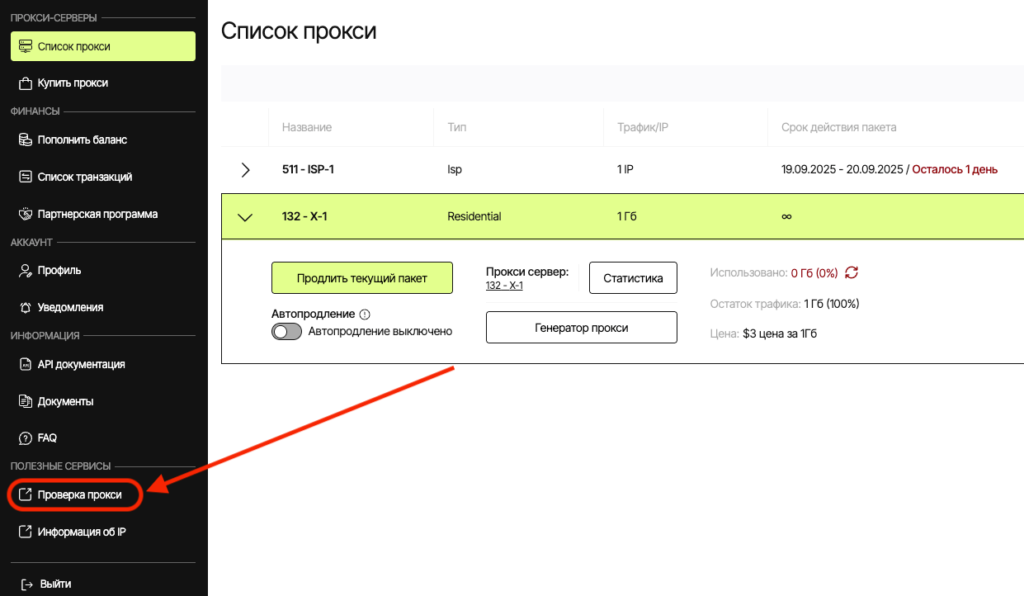
- Proxy check.
The Prosox.io personal account already includes proxy server verification. You can check the correct operation from your personal account.
Connecting Prosox ISP (STATIC) Proxies
Example: You purchased US proxy servers from Prosox.io and received the following:
62.171.230.139:63060:prosoxPbfyz:9fSbyM7ce8RW
- Select proxy type HTTP or SOCKS5 (as specified in your Prosox account).
- Server: paste your IP from Prosox (62.171.230.139)
- Port: 63060
- Login: prosoxPbfyz
- Password: 9fSbyM7ce8RW
Why ISP proxies: you are guaranteed to get the same static IP address for each connection. This is critically important for stable, long sessions: such proxies are excellent for working with personal accounts, financial services, payment platforms, and careful account management – without sudden IP changes or “jumps” that modern security systems dislike.
Additional features and recommendations
- In the Prosox.io control panel, you can always select a proxy with the desired geolocation and adjust the scenario: fixed mode (sticky) – for long-term continuous operation, or dynamic address renewal (rotating) – for tasks requiring regular IP changes.
- If you don’t want to proxy certain websites – specify them as exceptions so the connection to them is direct.
- After activation, check the connection status and IP address change in your Prosox personal account or through other services to ensure complete anonymity and proper proxy operation.
Why Prosox.io?
Setting up a proxy for DuckDuckGo comes down to configuring the proxy in the system, network, or through an extension: the method depends on the device and usage scenario. This approach complements DuckDuckGo’s built-in privacy and helps maintain anonymity even on unsafe networks.
Don’t rely on publicly available proxy servers, as dozens and hundreds of people connect to such servers simultaneously, making the connection unstable with delays and interruptions. For real internet tasks, we recommend choosing private premium proxies from Prosox.io right away. With us, you’ll always find fast, clean, and reliable proxies for any tasks – from account management to parsing and automation.
You might also be interested in:
- Retriv.Market – A marketplace for accounts with one-click purchasing.
- The Best Anti-Detection Browser is BitBrowser for Multi-Accounting.
- NoCaptchaAI | The Fastest & Most Affordable AI-Powered Captcha Solver
- Dolphin Anty — an anti-detect browser for multiple accounts
- XLogin setup
- ixBrowser setup
- VMLogin setup
- MULogin setup
- GeeLark Setup
- How to set up a proxy in Google Chrome browser

Would you like to receive a personalized offer?
If you need technical advice or have a specific request, please contact us.