
How to set up a proxy in the Opera GX browser
05 Oct 2025
Reading time ~ 4 mins
For secure and private browsing, it makes sense to use paid proxy servers rather than free alternatives. This approach helps bypass blocks, change your IP address, mask network activity, and enhance personal data protection. Connecting a proxy in Opera GX is straightforward: the procedure is intuitive and doesn’t require deep knowledge of network technologies.
Step-by-step guide to setting up a proxy in Opera GX
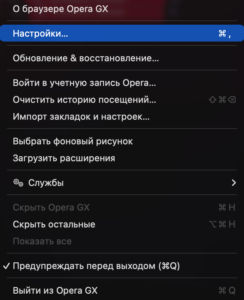
- In the browser menu, go to “Settings”.
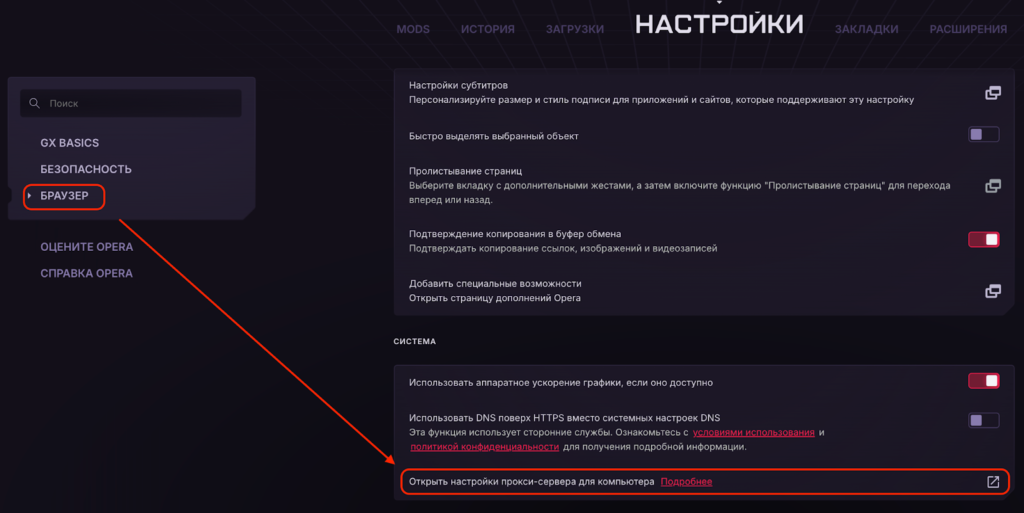
- In the “Browser” section, go to “System”; this option is at the bottom.
- Click “Proxy server settings”. This will redirect you to your computer’s system proxy settings.
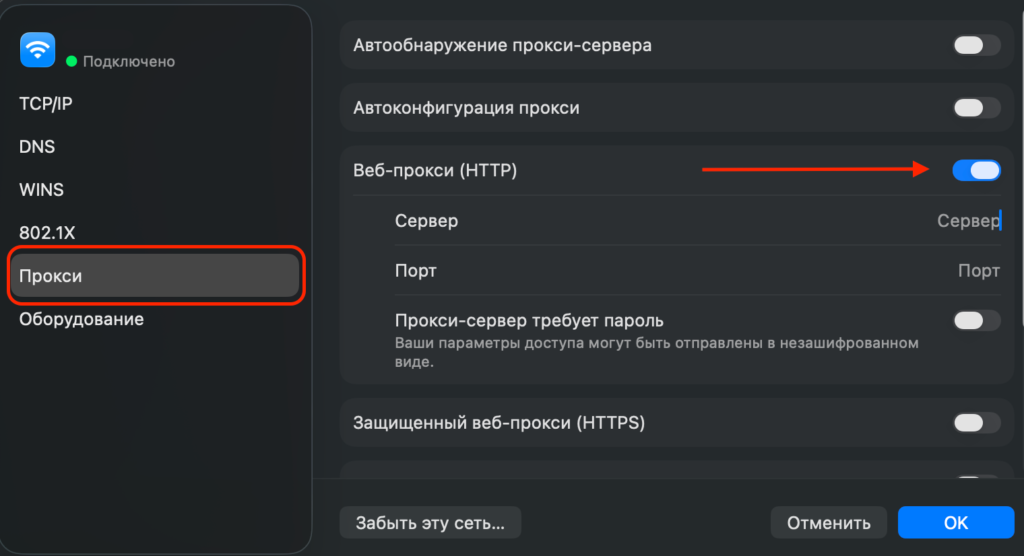
- In the window that opens, select the proxy you purchased (HTTP/ HTTPS/ SOCKS).
- Enter the IP address and port of the selected proxy server. If authorization is required, activate the option and enter your login and password.
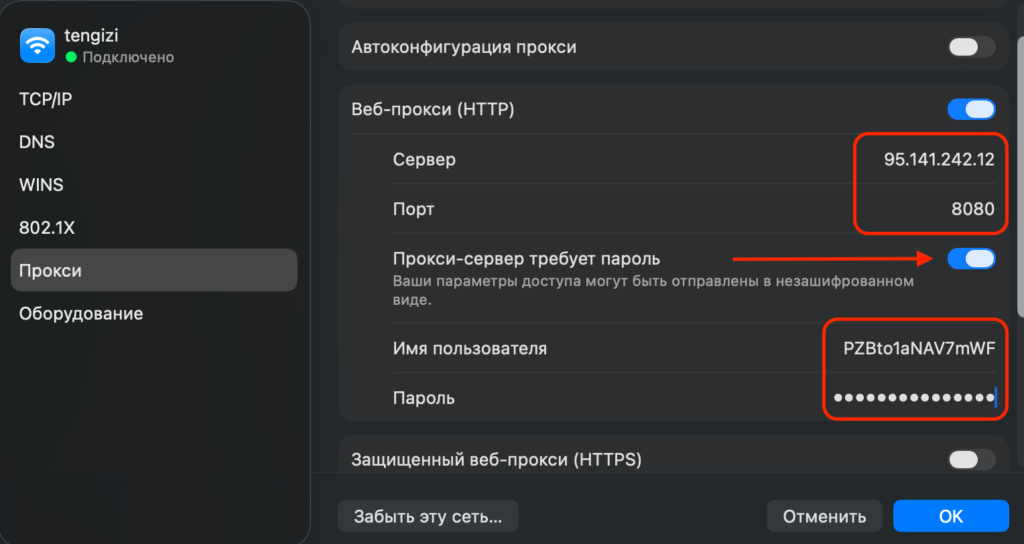
- After entering all connection details, click “OK” to save.
- To change the proxy, return to this window and replace the parameters with new ones.
- To disable the proxy, uncheck “Secure Web Proxy (HTTPS)” to use a direct connection.
Getting proxy data from Prosox
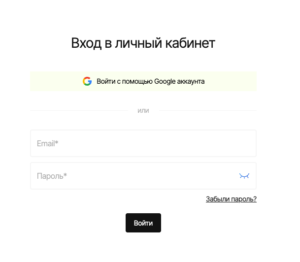
- Log in to your Prosox personal account. If you don’t have an account yet, you can create one by confirming your email.
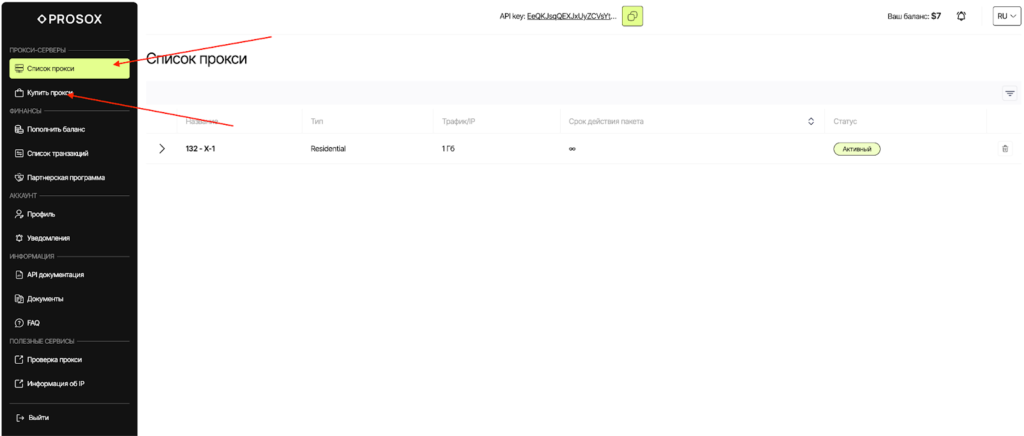
- Go to the “Proxy List” page if you already have proxies, or buy proxies if you haven’t done so yet.
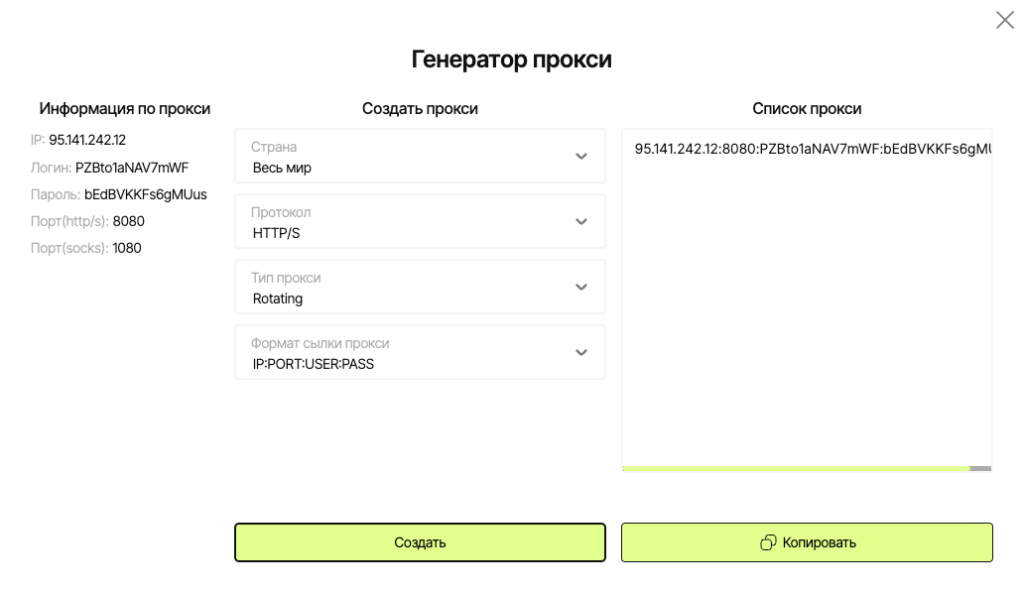
- Select plan/proxy type:
- Residential (rotating) – for “fussy” websites, parsing, advertising. IPs may change.
- ISP (static) – the same stable IP for long sessions, accounts, payments.
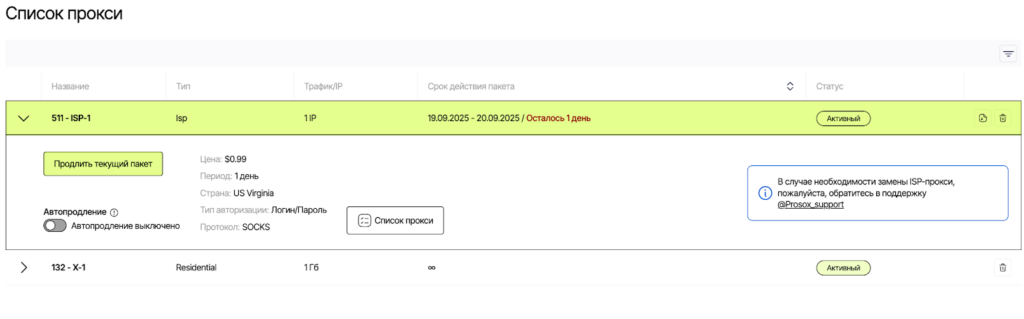
- Copy the connection parameters.
Connecting Prosox RESIDENTIAL Proxies
Example: You purchased residential proxy servers from Prosox.io and received the following:
95.141.242.12:8080:PZBto1aNAV7mWF:bEdBVKKFs6gMUus
- Select proxy type HTTPS or SOCKS5 (as specified in your Prosox account).
- Server: paste your IP from Prosox (example: 95.141.242.12)
- Port: 8080
- Login: PZBto1aNAV7mWF
- Password: bEdBVKVFs6gMUus
- Proxy check.
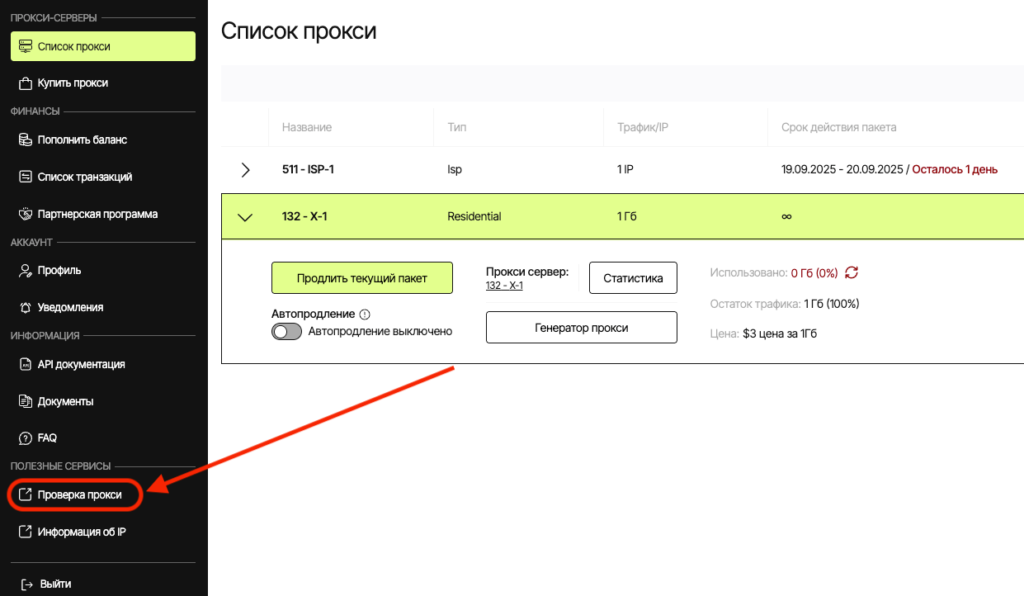
The Prosox.io personal account already includes proxy server verification. You can check the correct operation from your personal account.
Connecting Prosox ISP (STATIC) Proxies
Example: You purchased US proxy servers from Prosox.io and received the following:
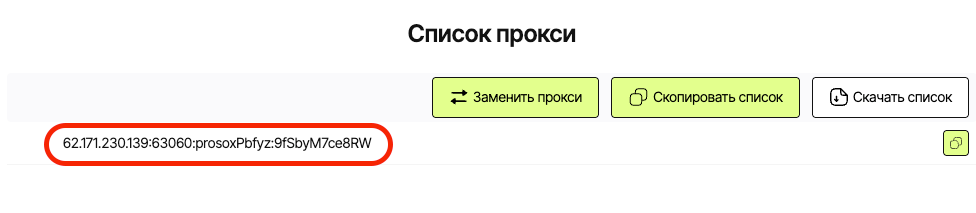
62.171.230.139:63060:prosoxPbfyz:9fSbyM7ce8RW
- Select proxy type HTTP or SOCKS5 (as specified in your Prosox account).
- Server: paste your IP from Prosox (62.171.230.139)
- Port: 63060
- Login: prosoxPbfyz
- Password: 9fSbyM7ce8RW
Why ISP proxies: you are guaranteed to get the same static IP address for each connection. This is critically important for stable, long sessions: such proxies are excellent for working with personal accounts, financial services, payment platforms, and careful account management – without sudden IP changes or “jumps” that modern security systems dislike.
Additional features and recommendations
- In the Prosox.io control panel, you can always select a proxy with the desired geolocation and adjust the scenario: fixed mode (sticky) – for long-term continuous operation, or dynamic address renewal (rotating) – for tasks requiring regular IP changes.
- After activation, check the connection status and IP address change in your Prosox personal account or through other services to ensure complete anonymity and proper proxy operation.
Why Prosox.io?
Public proxies for Opera GX are rarely suitable for stable operation: many users connect to them simultaneously, leading to increased delays, decreased speed, and connection drops. For work tasks, it’s more rational to immediately choose private premium proxies from Prosox.io – fast, “clean,” and stable IPs for any scenario: account management, parsing, and automation.
You might also be interested in:
- Retriv.Market – A marketplace for accounts with one-click purchasing.
- The Best Anti-Detection Browser is BitBrowser for Multi-Accounting.
- NoCaptchaAI | The Fastest & Most Affordable AI-Powered Captcha Solver
- Dolphin Anty — an anti-detect browser for multiple accounts
- XLogin setup
- ixBrowser setup
- VMLogin setup
- MULogin setup
- GeeLark Setup
- How to set up a proxy in Google Chrome browser

Would you like to receive a personalized offer?
If you need technical advice or have a specific request, please contact us.