
How to Set Up a Proxy in Mozilla Firefox Browser
05 Oct 2025
Reading time ~ 4 mins
Mozilla Firefox is a popular and functional browser chosen by millions of users worldwide. Sometimes it becomes necessary to change your IP address — for example, to access blocked content, bypass geo-restrictions, or effectively manage multiple social media accounts. In such cases, proxy servers help increase anonymity and prevent the linking of different accounts.
Firefox has built-in capabilities for connecting to proxies without the need to install any additional software. Below you will find a detailed step-by-step guide that will help you quickly and correctly set up a proxy.
Step-by-Step Proxy Setup in Mozilla Firefox
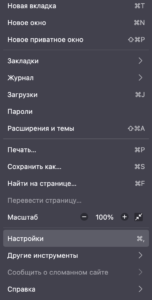
- Click the icon with three horizontal lines in the top right corner of the browser and select the “Settings” section.
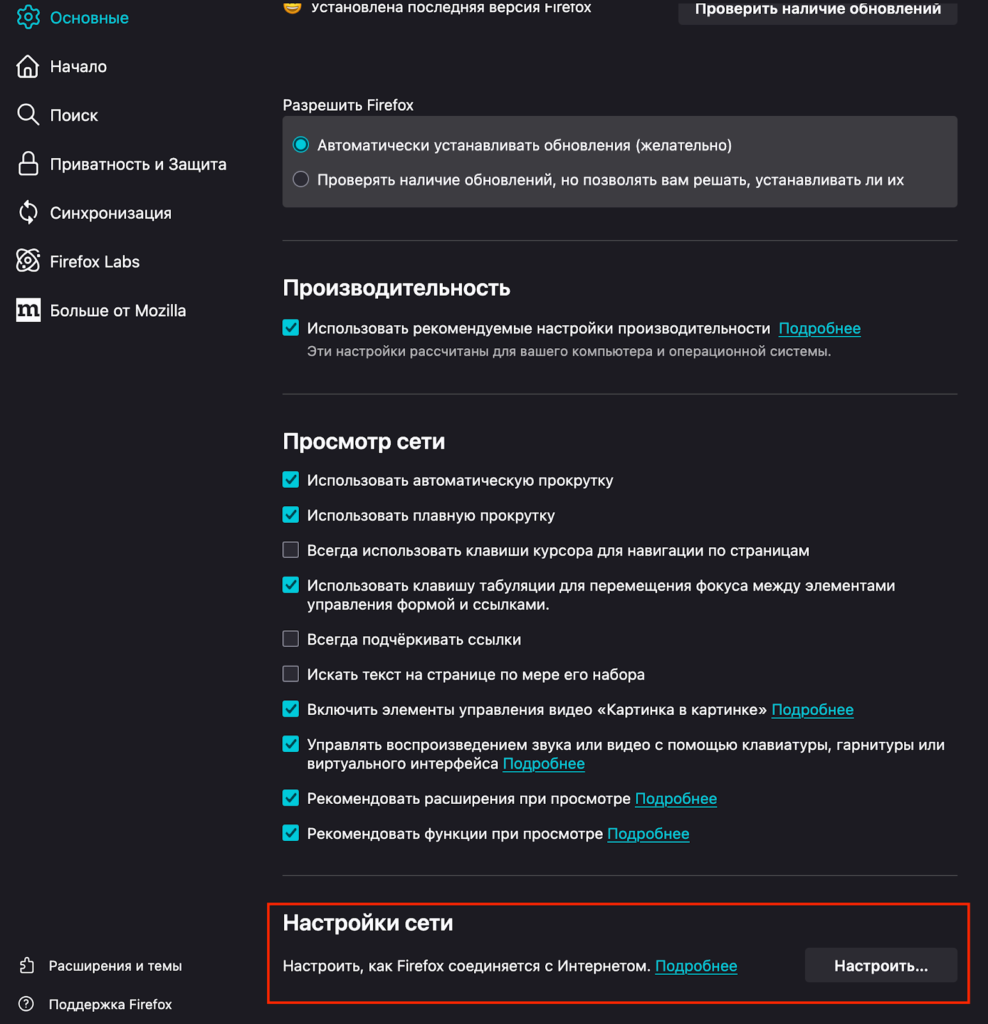
- Scroll down the page to the “Network Settings” block and click the “Settings” button.
- In the connection settings window, check the option “Manual proxy configuration.”
- Enter the IP address and proxy port in the corresponding fields. If necessary, add a list of websites that should bypass the proxy to connect directly.
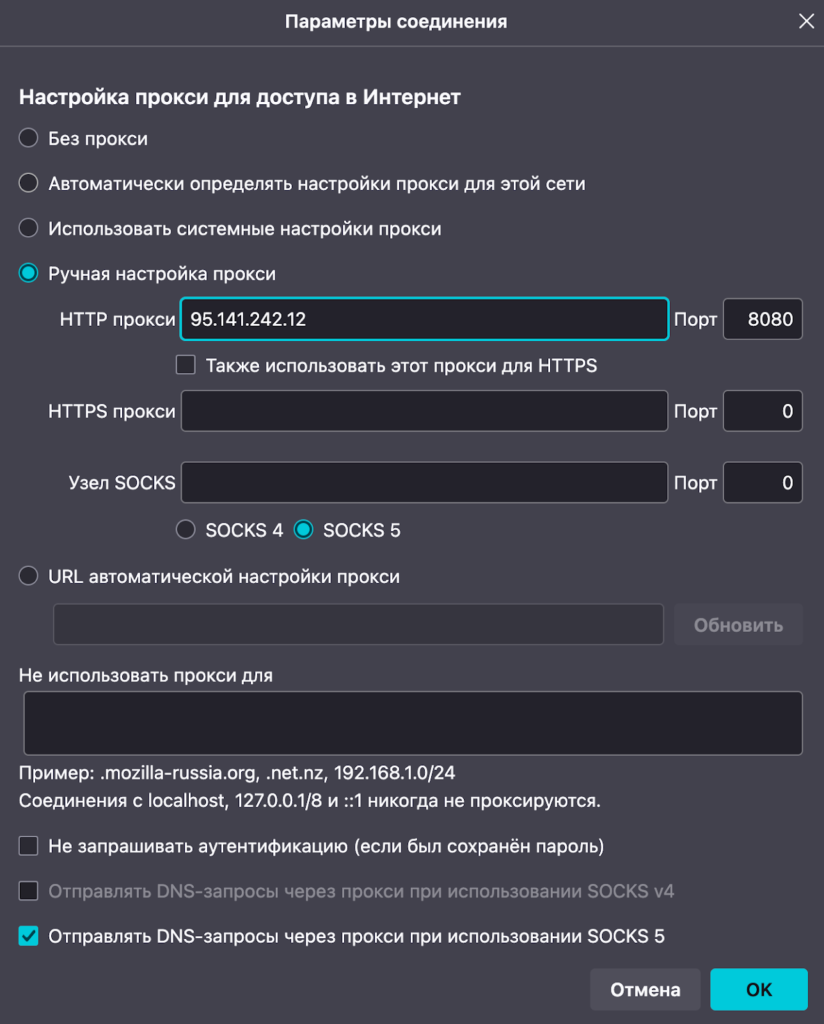
- Click “OK” to save the changes.
When using a private proxy, after navigating to any website, Firefox will prompt for a username and password. Enter your credentials and confirm login.
To verify the successful setup of the address, you can go to your Prosox personal account or use other services to ensure complete anonymity and correct proxy operation.
Now your internet traffic passes through the selected proxy, providing an additional layer of confidentiality and preventing third-party services from using your real IP address.
Getting proxy data from Prosox
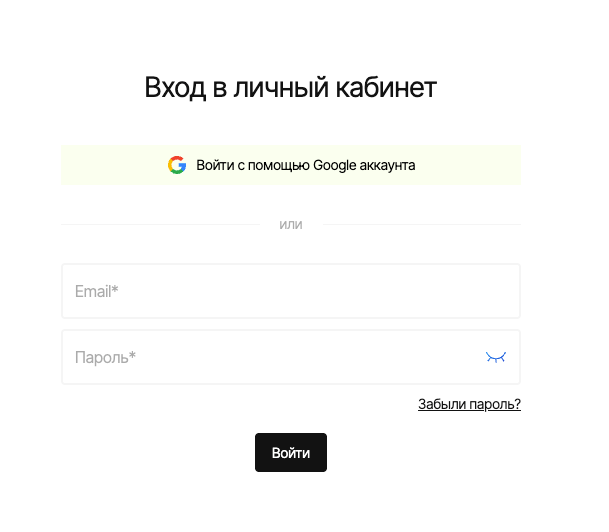
- Log in to your Prosox personal account. If you don’t have an account yet, you can create one by confirming your email.
- Go to the “Proxy List” page if you already have proxies, or buy proxies if you haven’t done so yet.
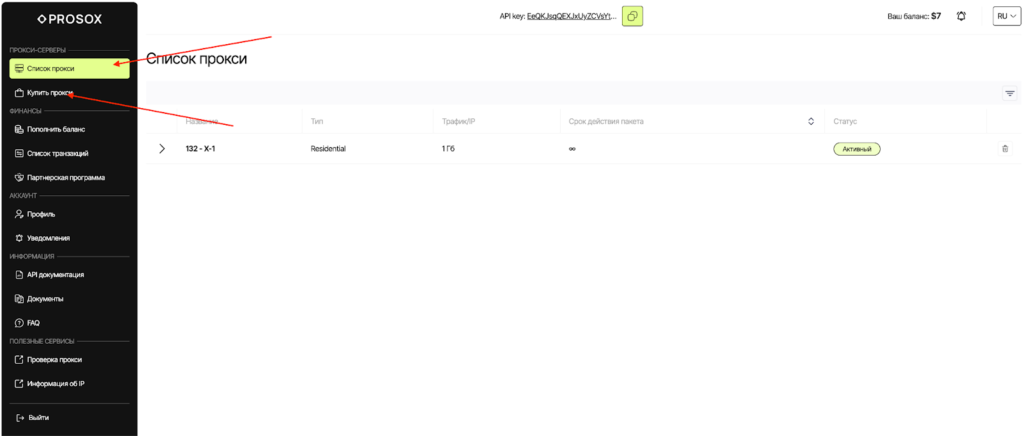
- Select plan/proxy type:
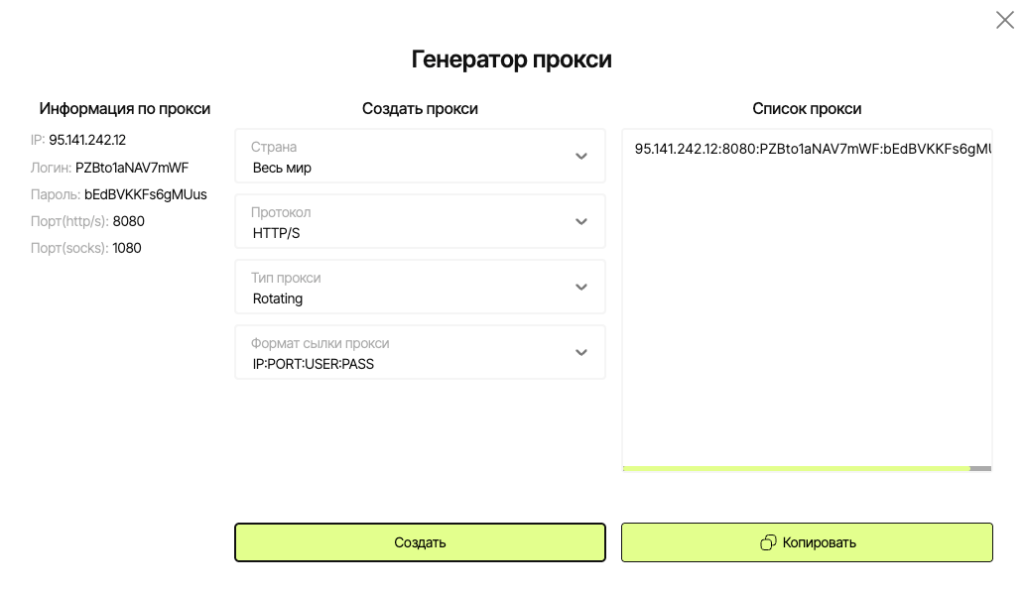
- Residential (rotating) – for “fussy” websites, parsing, advertising. IPs may change.
- ISP (static) – the same stable IP for long sessions, accounts, payments.
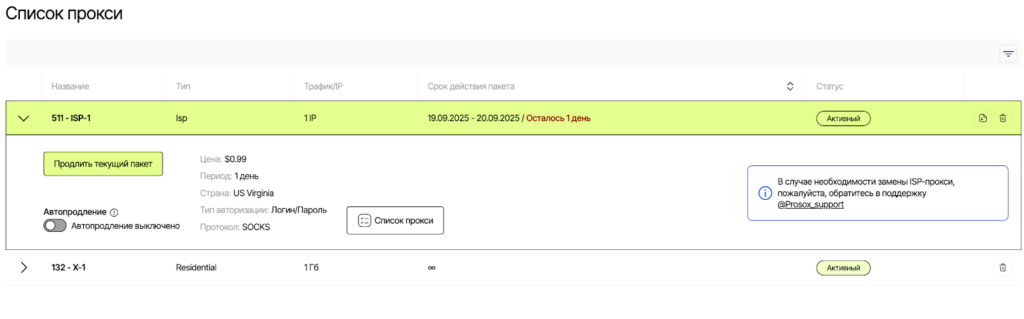
- Copy the connection parameters.
Connecting Prosox RESIDENTIAL Proxies
Example: You purchased residential proxy servers from Prosox.io and received the following:
95.141.242.12:8080:PZBto1aNAV7mWF:bEdBVKKFs6gMUus
- Select proxy type HTTPS or SOCKS5 (as specified in your Prosox account).
- Server: paste your IP from Prosox (example: 95.141.242.12)
- Port: 8080
- Login: PZBto1aNAV7mWF
- Password: bEdBVKVFs6gMUus
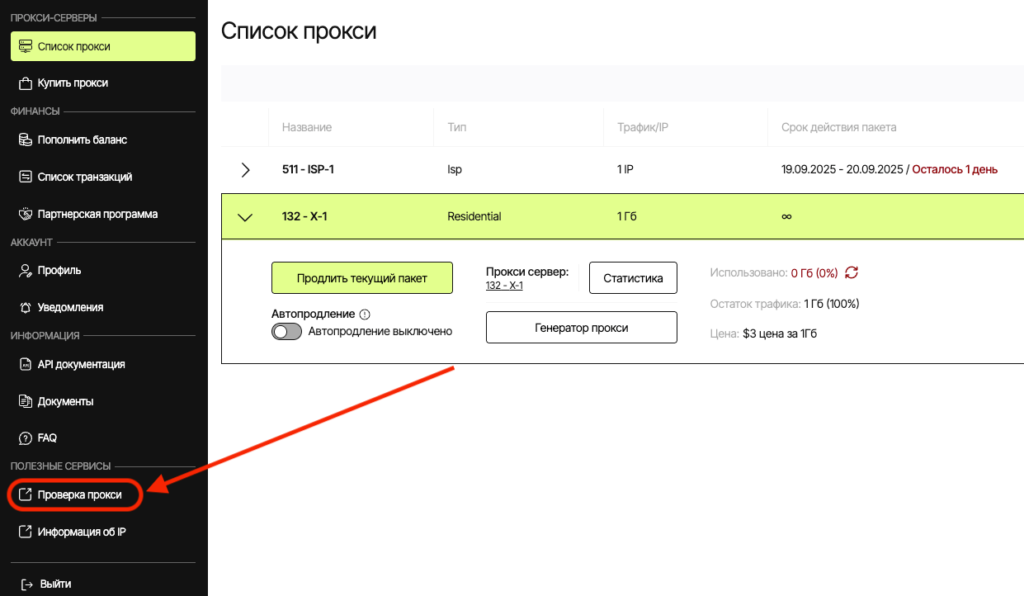
- Proxy check.
The Prosox.io personal account already includes proxy server verification. You can check the correct operation from your personal account.
Connecting Prosox ISP (STATIC) Proxies
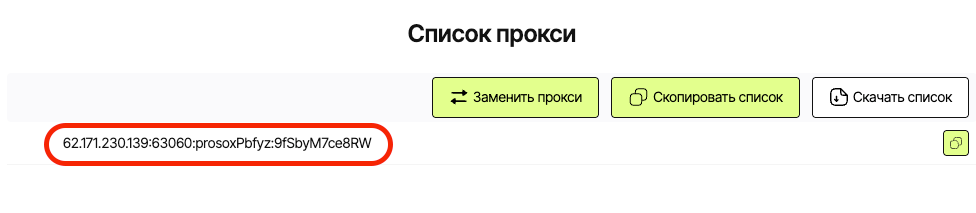
Example: You purchased US proxy servers from Prosox.io and received the following:
62.171.230.139:63060:prosoxPbfyz:9fSbyM7ce8RW
- Select proxy type HTTP or SOCKS5 (as specified in your Prosox account).
- Server: paste your IP from Prosox (62.171.230.139)
- Port: 63060
- Login: prosoxPbfyz
- Password: 9fSbyM7ce8RW
Why ISP proxies: you are guaranteed to get the same static IP address for each connection. This is critically important for stable, long sessions: such proxies are excellent for working with personal accounts, financial services, payment platforms, and careful account management – without sudden IP changes or “jumps” that modern security systems dislike.
Additional features and recommendations
- In the Prosox.io control panel, you can always select a proxy with the desired geolocation and adjust the scenario: fixed mode (sticky) – for long-term continuous operation, or dynamic address renewal (rotating) – for tasks requiring regular IP changes.
- If you don’t want to use a proxy for certain websites, specify them as exceptions so that the connection to them is direct.
Why Prosox.io?
Do not rely on publicly available proxy servers for Mozilla Firefox: dozens and hundreds of people connect to such servers simultaneously, which makes the connection unstable, causing delays and interruptions. For real-world internet tasks, we recommend choosing private premium proxies from Prosox.io right away. With us, you will always find fast, clean, and reliable proxies for any task — from account management to parsing and automation.
You might also be interested in:
- NoCaptchaAI | The Fastest & Most Affordable AI-Powered Captcha Solver
- Dolphin Anty — an anti-detect browser for multiple accounts
- XLogin setup
- ixBrowser setup
- VMLogin setup
- MULogin setup
- GeeLark Setup
- How to set up a proxy in Google Chrome browser
- How to set up a proxy in the Opera GX browser
- How to Set Up a Proxy in DuckDuckGo

Would you like to receive a personalized offer?
If you need technical advice or have a specific request, please contact us.